Invite your group to a ReadyList
Last updated
A ReadyList is much more useful with your group in it. This guide shows you how to create a list and bring people in with one link.
Create the list and share the link
- On the web, click New event on your home screen. On iPhone, tap the + button, which opens “New list”.
- Choose a template, or start from scratch. On the web the steps are Template, Details and Invite. Templates pre-fill the checklist, and you can change anything later.
- Enter a name and the event date. Every task counts down to that date.
- Web only: on the Invite step you can add people by email, or click Skip & create and share a link instead.
- Click Create event (iPhone: Create list).
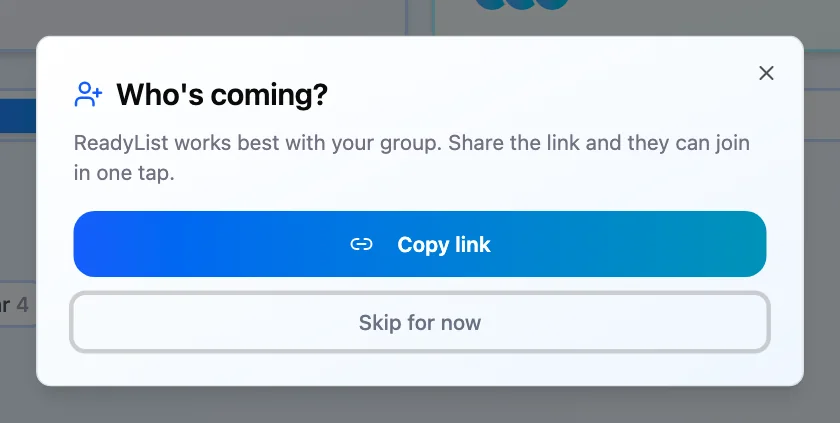
- A “Who’s coming?” prompt appears. Tap Share invite link to open your phone’s share sheet. On the web, click Copy link and paste it into your group chat. If you would rather do it later, choose Skip for now.
Invite people later
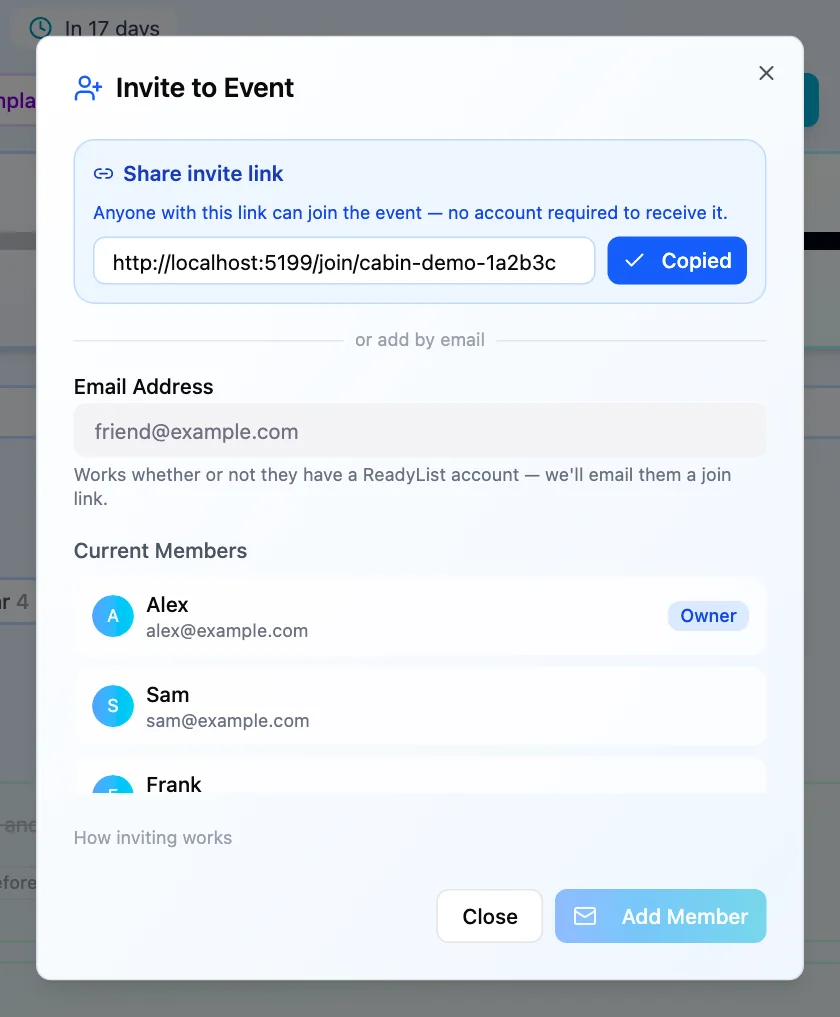
- Web: open the list and click Invite. In “Invite to Event”, click Generate invite link, then Copy. You can also add someone under “or add by email” with Add Member.
- iPhone: open the list, tap the More options menu (the three dots) and choose Invite your group.
If you are the only member, a banner on the list says “ReadyList works best with your group” with an Invite your group button.
What your friends see
- They open the link. It always goes to a
getreadylist.app/join/...page. On iPhone, the page offers Open in the app if they have ReadyList installed. - They choose Sign in to join this event. If they are new, signing in creates their free account.
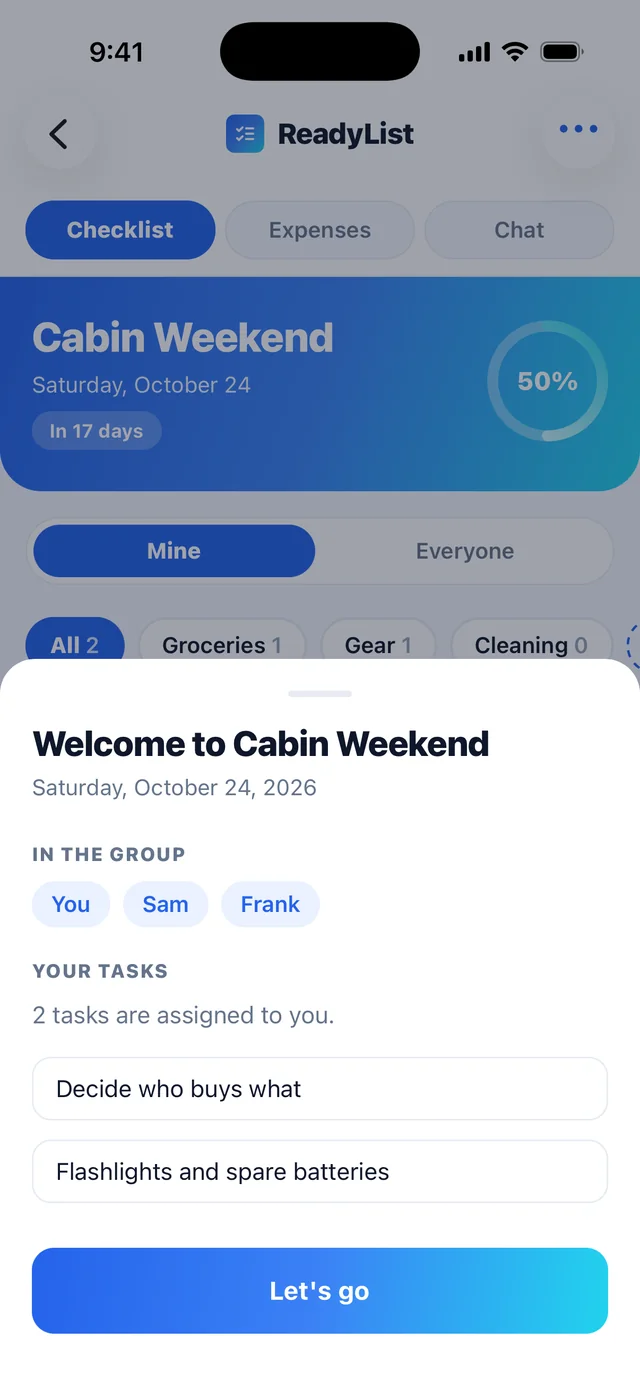
- They land on the list with a “Welcome to Cabin Weekend” message, showing who is in the group and how many tasks are assigned to them. They tap Let’s go.
- The list opens on Mine, the filter that shows only tasks assigned to them. See Focus on your tasks and organize with sections.
Everyone you invite gets their own checklist, so nobody overwrites anyone else’s ticks. To see how progress is shared, read Add tasks, assign them and track progress.
The free plan limits how many events you own at once. It is listed in Language, notifications and account settings.
Frequently asked questions
- Does everyone I invite need a ReadyList account?
- Yes, but it is free and takes seconds. They sign in with Google or Apple when they open your link, and they get their own copy of the checklist straight away.
- Can I invite someone by email?
- On the web, yes. Open the list, click Invite, and use "or add by email". They get an email with a join link, whether or not they already have an account. The iPhone app shares a link instead of sending emails.
- Is it safe to post the invite link in a big group chat?
- Anyone with the link can join the list, so share it only with people you want on it. Invite everyone you're planning with.
Related
More help guides
- Add tasks, assign them and track progress
- Focus on your tasks and organize with sections
- Language, notifications and account settings
From the blog
Ready to try it?
Every person gets their own checklist, and you can see who is actually ready.
Open ReadyList — it’s free