Add tasks, assign them and track progress
Last updated
Use this guide to put tasks on a list, decide who is responsible for each, and see how far everyone has got.
Add a task
- Open a list and click Add Task (iPhone: Add task).
- Type what needs doing, for example “Pack sunscreen”. That is the only required field.
- Optionally choose a Section and Days Before Event, which sets when the task is due (“1 week before”, “Day of event” and so on).
- Click Add & close, or Add another to keep going. On iPhone, tap the button to save.
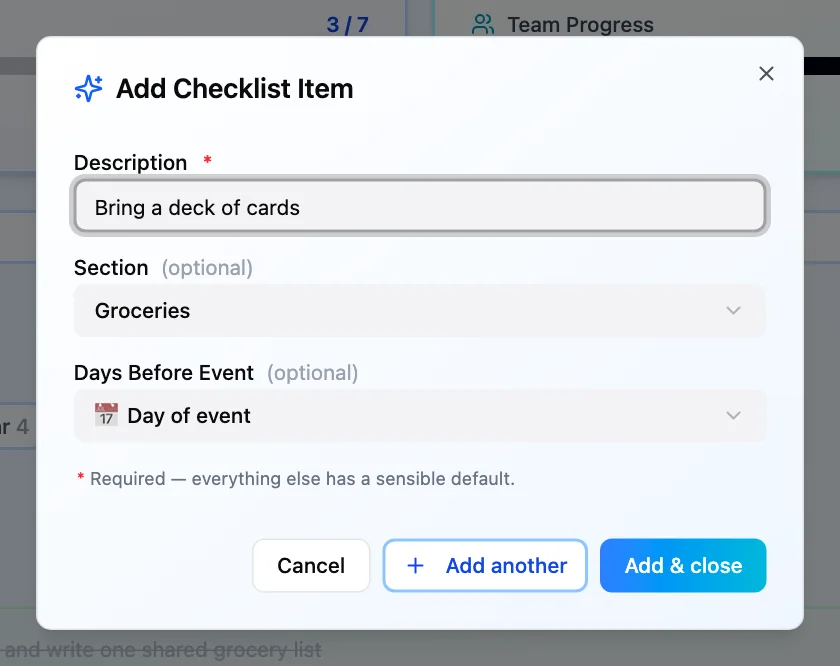
You can edit or delete a task you added. The list owner can edit or delete any task.
Tick tasks off
A task that is not assigned to anyone is on everyone’s list, and each person ticks their own copy. If the task is “Bring your passport”, you tick yours and Sam ticks his.
Assign a task
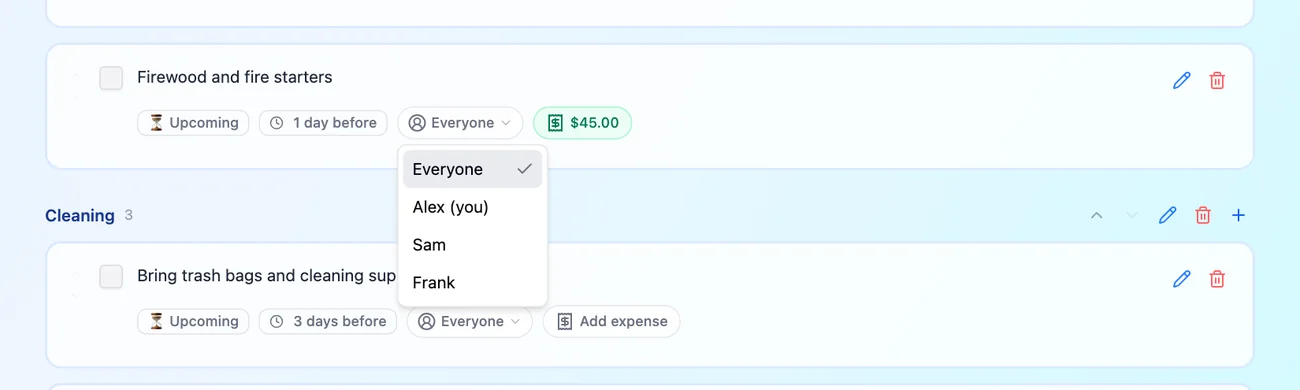
- Web: on the task row, open the small person pill (it reads Everyone until someone owns the task) and choose a member.
- iPhone: open the task’s menu, choose Assign, then pick a member in “Assign task”. Choose Unassign to undo it.
- Now only that person ticks the task, and their tick is the one everyone sees.
The list owner, or whoever added the task, can assign it to anyone. Any member can pick up a task nobody owns by tapping I’ll take it.
See progress
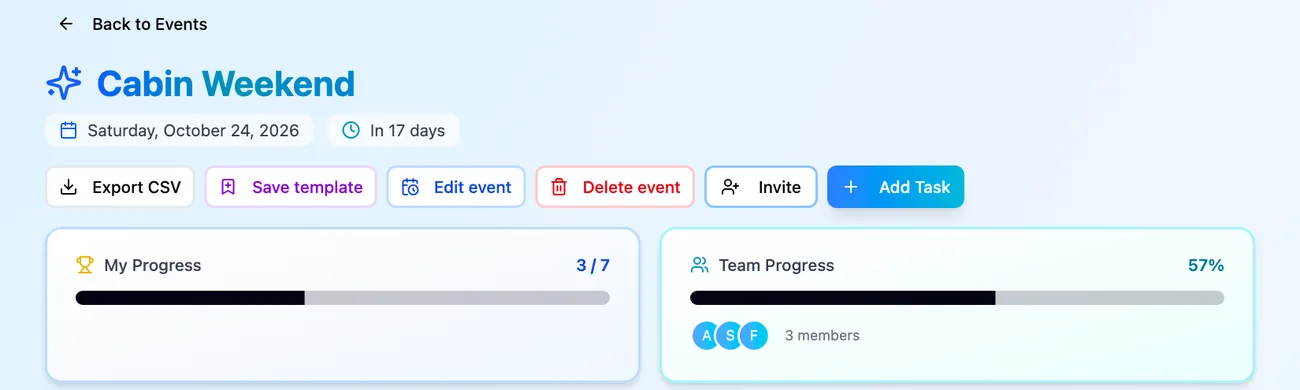
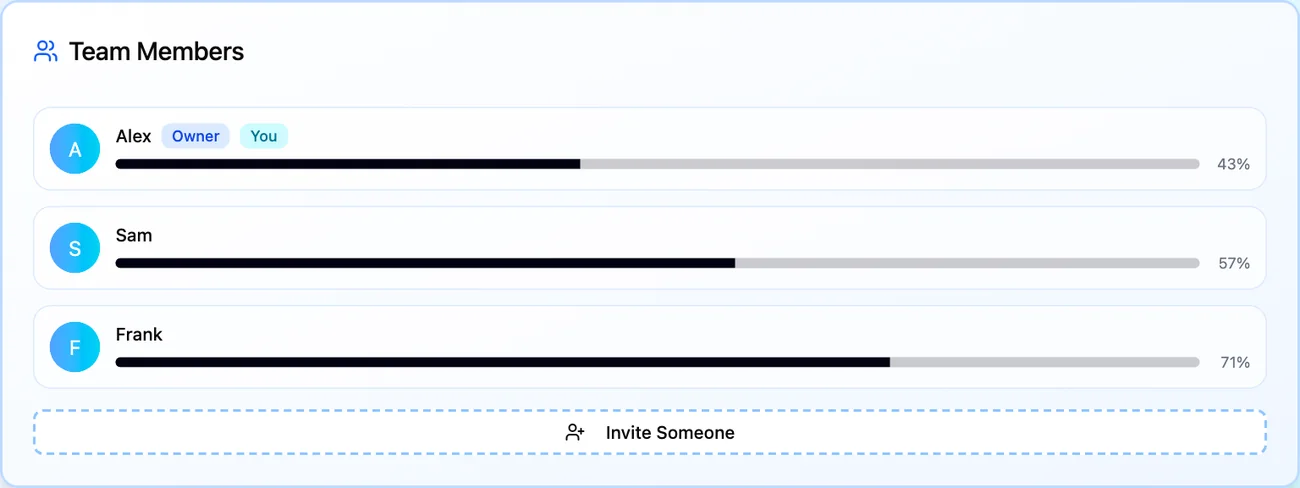
- Web: the My Progress card counts your own tasks (unassigned ones plus those assigned to you). Team Progress shows the whole group. Open the Team (3) tab to see each member’s percentage, with Owner and You badges.
- iPhone: the top of the list shows “3 of 8 done” for you, and a “Team 62%” line once the list has more than one member. Per-person percentages are not shown on iPhone yet.
Web-only extras
- Timeline tab: the same tasks ordered by due date.
- Export CSV and Save template: export the list, or keep it as a template under Create Event → Templates.
Frequently asked questions
- Why can't I tick a task?
- The task is assigned to someone else, so only they can tick it. You will see a message like "Sam owns this task — only they can tick it off." Ask the list owner to reassign it if that has changed.
- Why did the team percentage change when I assigned a task?
- An unassigned task is one unit of work for every member. An assigned task is one unit, for the assignee. Handing a task to one person therefore shrinks the total the team has to get through.
- Can I take my checklist out of ReadyList?
- On the web, use Export CSV on the list. It saves the tasks, their section, timing, who each is assigned to and each member's done or pending state.
Related
More help guides
- Focus on your tasks and organize with sections
- Invite your group to a ReadyList
- Chat with your group on a list
From the blog
Ready to try it?
Every person gets their own checklist, and you can see who is actually ready.
Open ReadyList — it’s free