Focus on your tasks and organize with sections
Last updated
Big lists get noisy. The Mine / Everyone switch and sections keep you looking at only what matters.
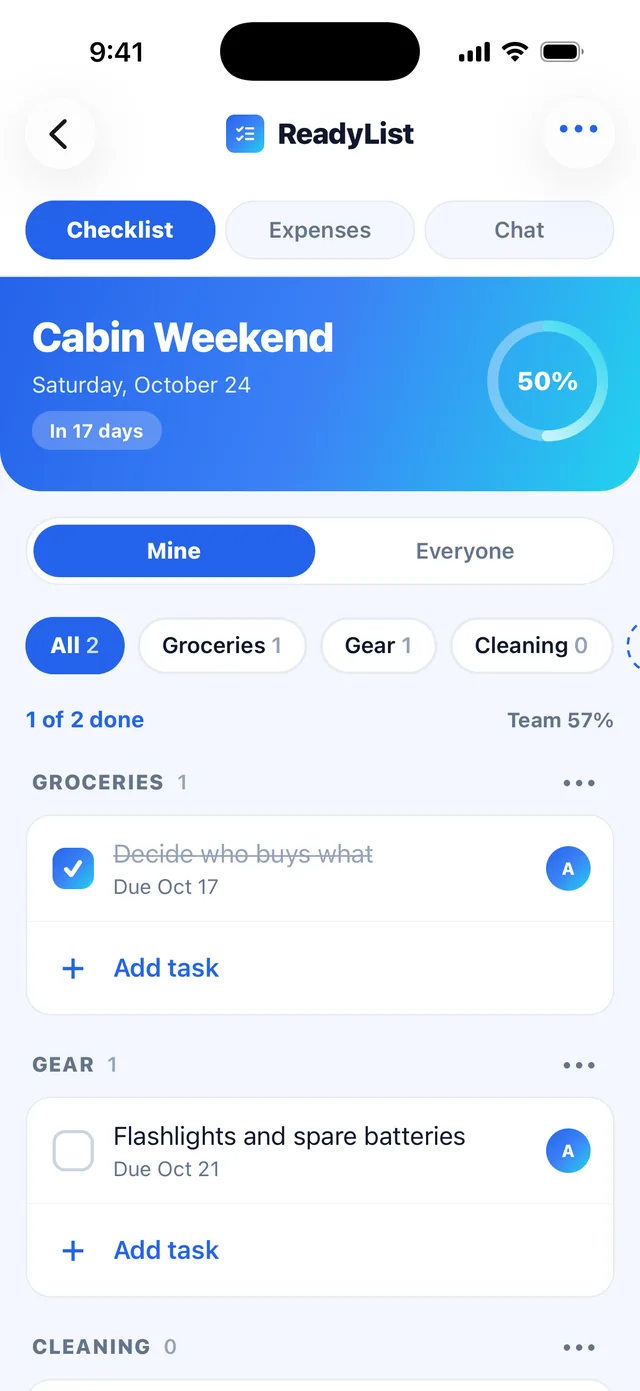
Show only your tasks
- Open a list and find Show tasks above the checklist.
- Choose Mine to see only tasks assigned to you, with a count such as “3 of 5 done”. Choose Everyone for the whole list.
- ReadyList remembers your choice for that list. A list opens on Everyone, except right after you join through an invite, when it opens on Mine.
If nothing is assigned to you, you will see “Nothing’s assigned to you yet” and tasks nobody has picked up. Tap I’ll take it to make one yours, or Show everyone. When you add a task while on Mine, the view switches to Everyone so you can see it.
Add your own section
Every list has Preparation and Day Of sections, and some templates add more (the cabin template has Groceries, Gear and Cleaning).
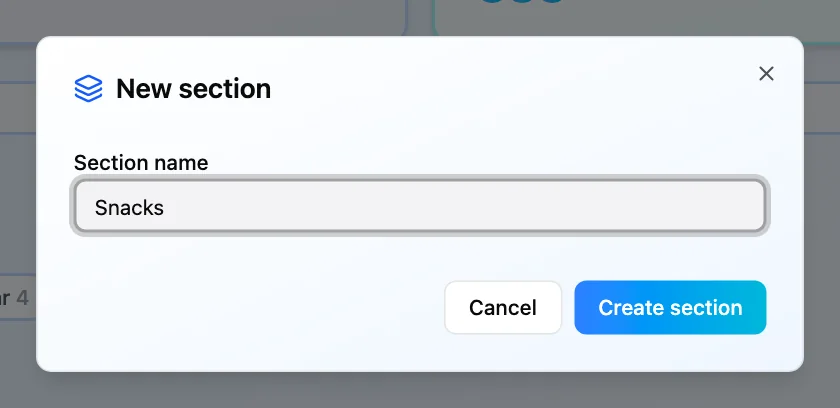
- Click Add section (iPhone: Add section).
- Type a name in “New section”, for example “Snacks”. Names can be up to 40 characters, and a list holds up to 20 sections.
- Click Create section (iPhone: Add).
- To put a task in it, use the section’s Add a task to this section button, or choose the section when you add or edit a task.
Filter by section
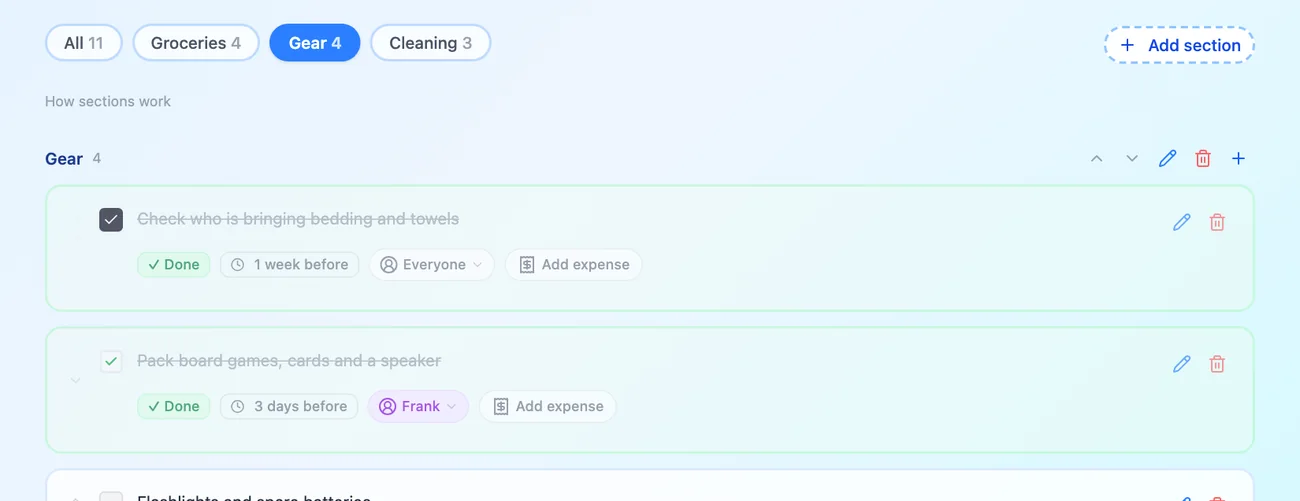
- Use the chip bar labelled Filter by section.
- Tap All or a section name to see just those tasks. Your choice is remembered for that list.
- Combine it with Mine to see, for example, only your grocery tasks.
Rename, reorder, delete (list owner)
Open Section options on a section’s header and choose Rename, Move section up / down or Delete section. If the section has tasks, you choose Delete its tasks, or Move its tasks to another section with Move to. Then confirm with Delete section.
To move one task, edit it and change Section (iPhone: Move to another section in its menu). The owner and the person who added the task can do this.
Web and iPhone
Sections need ReadyList 1.7.0 on iPhone (released October 3, 2026), and Mine / Everyone needs 1.6.0 (October 1, 2026). On the web, the list has Checklist and Timeline tabs, and the filter works on both. iPhone has only the Checklist.
Frequently asked questions
- Who can add, rename or delete a section?
- Anyone on the list can add a section. Only the list owner can rename, reorder or delete one. A list always keeps at least one section.
- Why does my list open on Everyone?
- Lists open on Everyone so you see the whole picture, unless you have just joined through an invite, which opens on Mine. ReadyList remembers the last choice you made for each list.
- Did my existing lists change?
- No. Every list already had Preparation and Day Of, and its tasks are still there. They are now just two sections among any you add.
Related
More help guides
- Add tasks, assign them and track progress
- Invite your group to a ReadyList
- Chat with your group on a list
From the blog
Ready to try it?
Every person gets their own checklist, and you can see who is actually ready.
Open ReadyList — it’s free