Split expenses and settle up
Last updated
Use the Expenses tab to record what each person paid and see how to settle up when it is over.
Choose the currency
You pick the currency when you create the list. The list owner can change it from the Currency menu at the top of the Expenses tab, but only until the first expense is added.
Add an expense
- Open the list and go to the Expenses tab.
- Click Add expense (or Add the first expense).
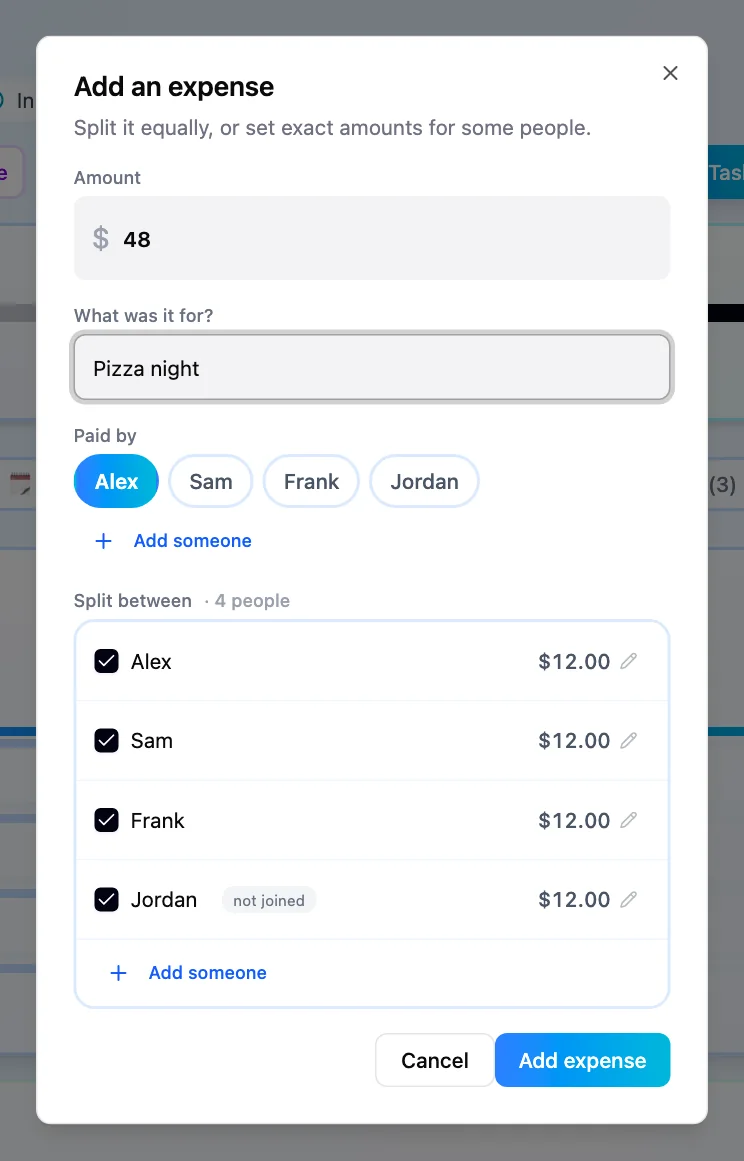
- Enter the Amount and What was it for?, for example “Dinner”.
- Choose who Paid by.
- Under Split between, pick the people sharing it. Everyone you pick pays an equal share by default.
- Click Add expense to save. The balances update straight away.
Give someone an exact amount
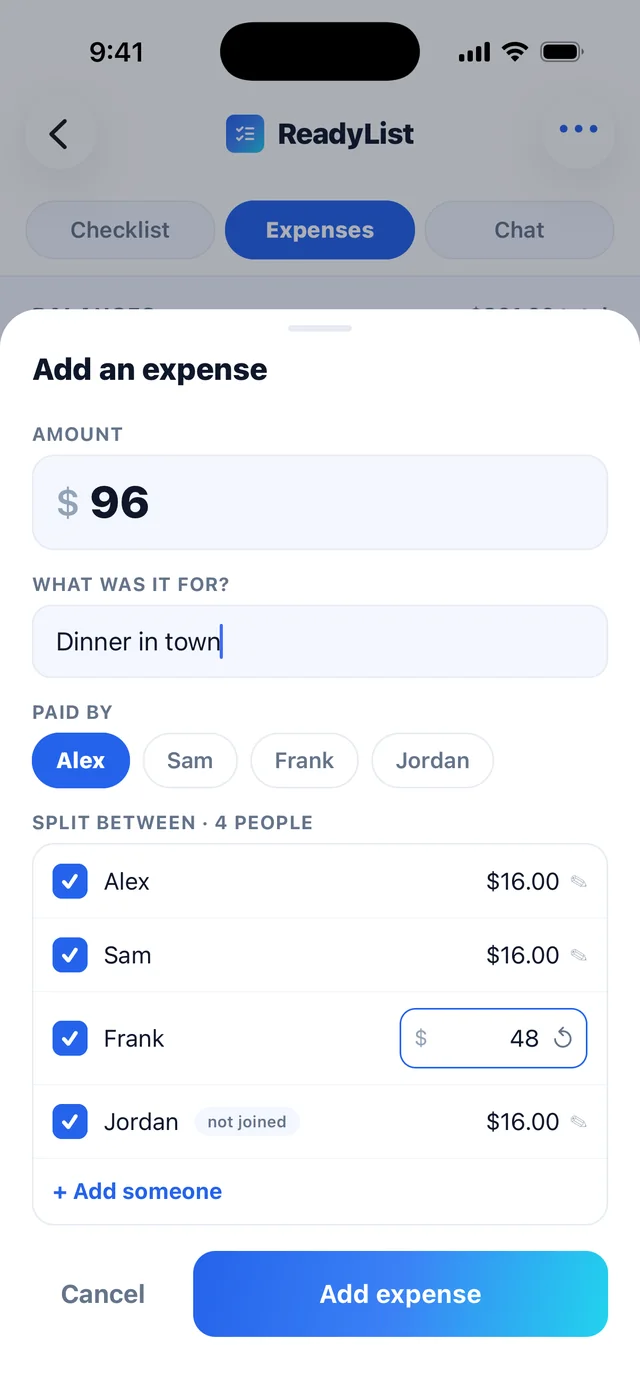
If Frank had the expensive main course, tap the amount shown beside Frank’s name (it has a small pencil next to it) and type Frank’s share. Everyone left on an equal share splits whatever remains. To undo it, tap the small circular arrow next to the amount to go back to an equal share.
If every share is exact, the amounts must add up to the total. ReadyList tells you when they do not, for example “The set amounts add up to 80, not 100.”
Include someone who hasn’t joined
- In the form, click Add someone and type Their name. They appear with “not joined”.
- If they join later, they see “Someone added Frank to the expenses before you joined. Is that you?” and tap This is me, and their expenses come with them.
- The list owner can also use Link to a member under People to connect a guest to a person.
Record a cost from a task
On the web, each task row has an Add expense chip. It opens the form with a “For” line naming that task, and turns green and shows the total once something is spent. On iPhone, open the task’s menu and choose Add expense. Anyone on the list can add one.
Settle up
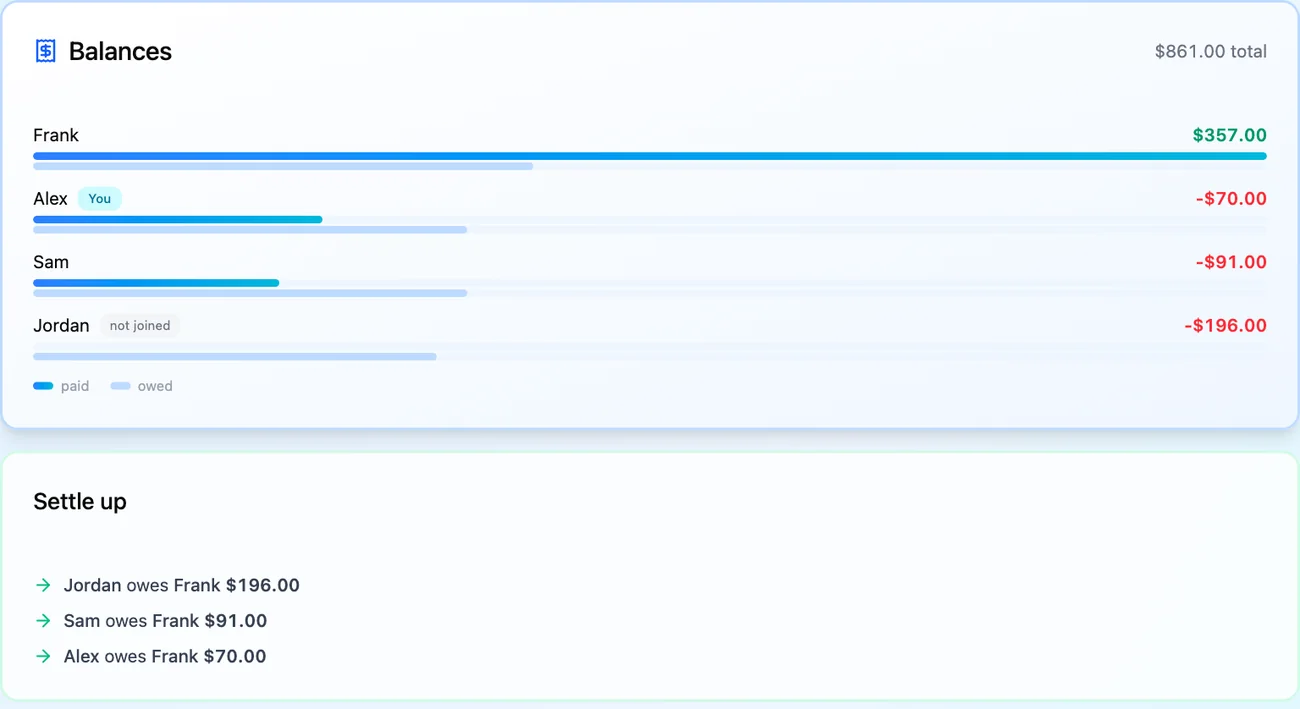
- Balances shows each person’s total paid and owed, and “settled” once they are even.
- Settle up lists a short set of payments that clears everyone, for example “Alex owes Sarah $47”.
The Expenses tab works the same on the web and iPhone. A guest can only be linked to a member by the list owner.
Frequently asked questions
- Does ReadyList move money between us?
- No. ReadyList works out everyone's share and shows who owes who, but you pay each other yourselves, with whatever app or method you already use.
- Can I edit an expense after adding it?
- No. Delete it and add it again. Whoever added an expense, or the list owner, can delete it, and it comes straight out of everyone's balance.
- Can one list use two currencies?
- No. Every expense on a list is in that list's currency. The owner can change the currency until the first expense is added, and after that it is locked.
Related
More help guides
- Add tasks, assign them and track progress
- Invite your group to a ReadyList
- Language, notifications and account settings
From the blog
Ready to try it?
Every person gets their own checklist, and you can see who is actually ready.
Open ReadyList — it’s free